How-to guide
Rest timer
RepBunny times your rest after each set, so you know when to start the next one. It keeps counting while you check your progress or switch screens.
46-second clip, with sound
Rest between sets
- Start a routine and log a set. The rest timer starts on its own.
- The line under -15s and +15s says where the time came from. Tap Edit to change it.
- Tap -15s or +15s, then Keep to rest that long on this exercise every time.
- Tap Back to workout. A bar above the tabs keeps counting.
-
Pick a rest time
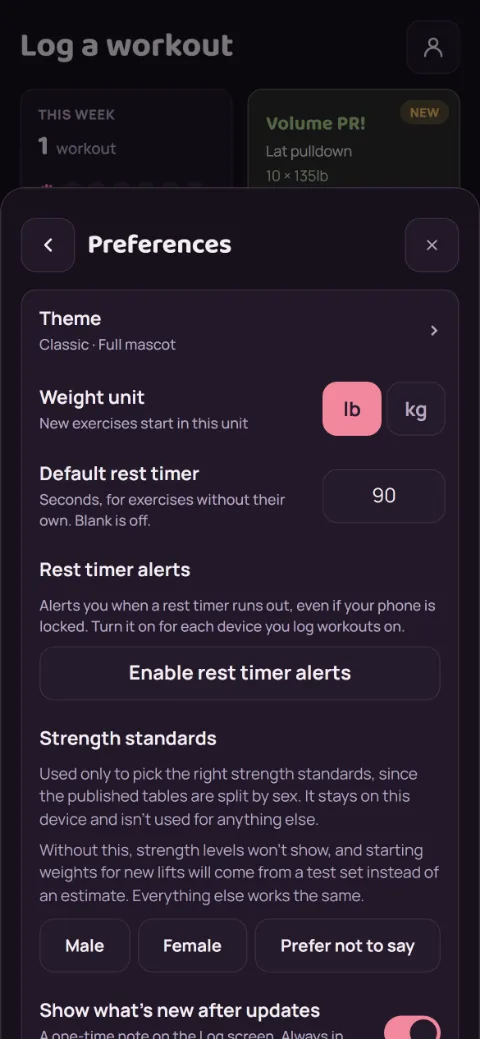
New to RepBunny? Every exercise rests 2:00 to start. Each exercise can have its own: open it in Exercises and set Rest timer (seconds). For everything else, tap the person icon, then Preferences, and set Default rest timer. Leave it blank to turn it off.
-
Log a set
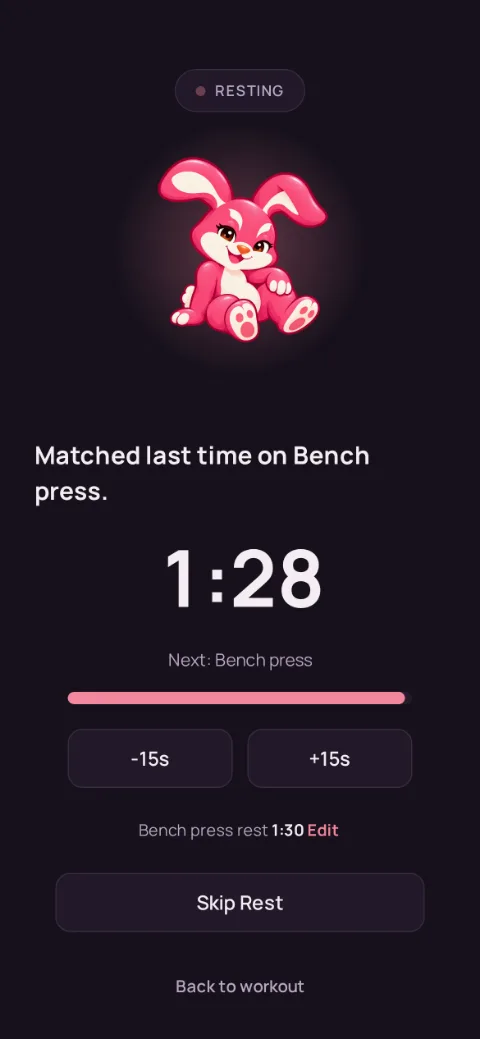
Tap Add set and the timer starts. Tap -15s or +15s to change it, or Skip Rest when you’re ready early. The line under the buttons says where the time came from: tap Edit to change it, or Keep after -15s or +15s to make that this exercise’s rest from now on.
-
Keep going while you rest
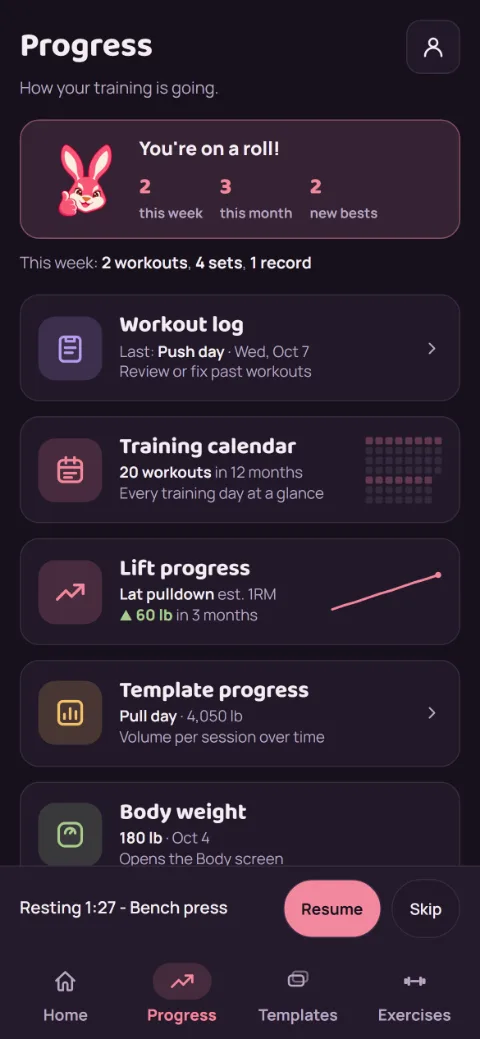
Tap Back to workout, or switch to another tab. A bar above the tabs keeps counting. Tap Resume to see the full timer again, or Skip to end it.
-
Get an alert when it’s done
In Preferences, turn on Rest timer alerts to get a notification when your rest ends, even with your phone locked. Turn it on for each device you log on.
Still stuck?
Email hello@repbunny.app and tell us what happened. A screenshot helps.
Get RepBunny
On Google Play now. iPhone coming soon.
Get it onGoogle Play